The dream of modernizing your business often clashes with reality: setting up POS software can seem intimidating if you’ve never done it before. Many small shop owners feel that installation is a technical process reserved for experts, full of unfamiliar terms and risks of errors. However, the key to a hassle-free POS installation isn’t advanced computer skills, but rather following clear, planned steps with the right strategy. 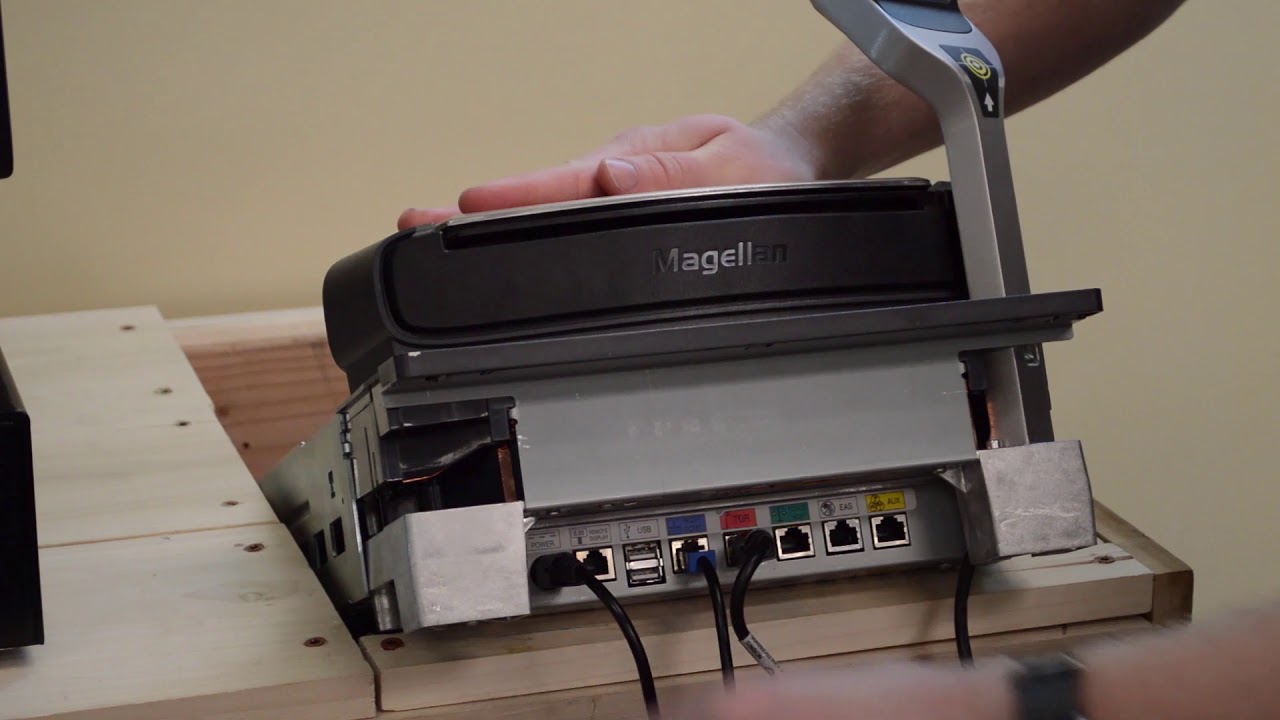
Installing a point-of-sale system isn’t just about clicking “next” a few times; it’s about preparing your business to run smarter, not harder. Below, we explore how to transform what seems like a technical challenge into a simple and reliable process.
1. Prepare your computer – the foundation for a successful installation
Before downloading any software, make sure your computer is ready. This means having a compatible operating system, sufficient disk space, adequate RAM, and administrator privileges. Failing to prepare your machine is like trying to build a house without a foundation: even the best software will fail without solid support.
Additionally, ensuring a stable internet connection and updating device drivers for items like printers and POS scanners prevents frustration later on. Considering these details before installation saves you time and stress.
2. Choose the correct version of the POS software
Not all POS systems are created equal. Some offer free versions for small stores, others limited trial versions, and still others paid versions with advanced features. The right choice depends on the size of your business, the number of users, and your operational needs.
For example, a business that only needs to record sales and manage inventory can start with a free POS system, while a store that also handles online orders and advanced reporting might require a professional version. Installation begins with a strategic decision, not a hasty click.
3. Secure download and file preparation
Once you’ve chosen the software, the next step is to download it only from the official vendor’s website . Many problems arise from third-party downloads that contain malware or incompatible versions.
Saving the file in an easily accessible folder and reviewing it before opening it is a practice that prevents interruptions during installation. This simple initial step puts you in control of the process.
4. Step-by-step installation without fear of mistakes
Starting the installation might seem intimidating, but it doesn’t have to be. Most POS systems offer a graphical wizard that guides the user step by step. Here, every click matters: accepting terms, choosing the installation folder, and deciding which modules to activate.
Some POS systems allow you to configure inventory, reports, and payment methods simultaneously from the start. Taking the time to review each option prevents future problems and ensures your system is tailored to your business from day one.
5. Initial setup customizing for your store
Installing the software is only the first step. Its true usefulness comes from configuring it correctly .
-
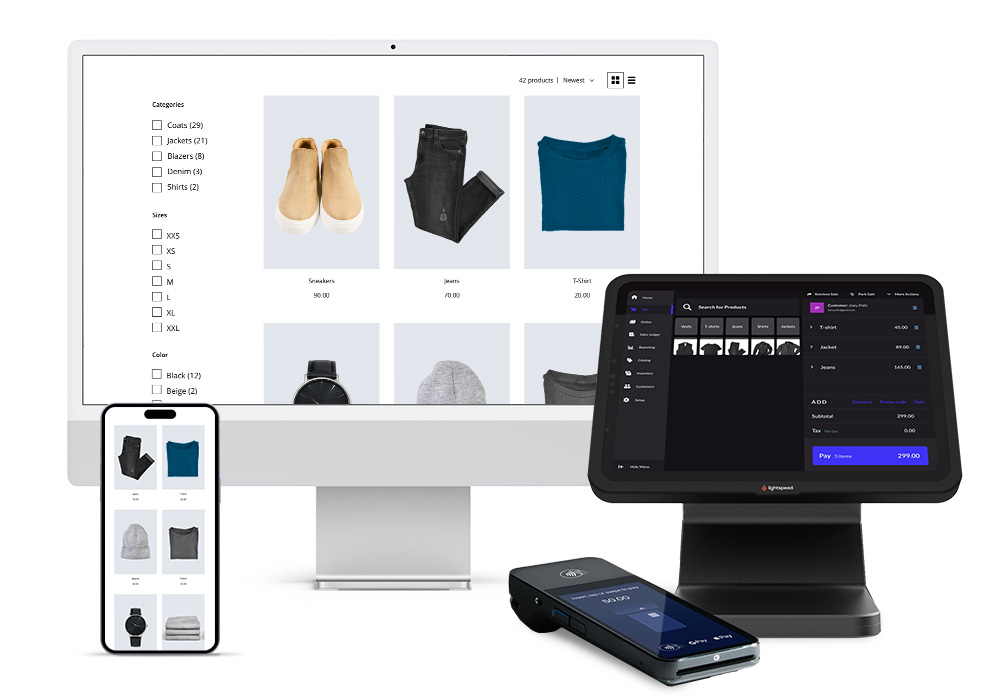
Register store information, currency, and applicable taxes.
-
Add products and categories with clear prices and codes.
-
Configure payment methods and system users with specific permissions.
Each configuration decision reduces daily manual work and prepares your business to run flawlessly from day one.
6. Tips for keeping the installation safe and efficient
-
Constant updates: installing patches and new versions prevents errors and vulnerabilities.
-
Regular backups: protect your sales and inventory data.
-
Staff training: a team that understands how to use the POS correctly is key to success.
-
Hardware verification: printers, scanners, and automatic cash drawers must integrate seamlessly.
These small habits make the installation not just a technical event, but the beginning of a reliable sales system.
7. Solving common problems
During installation, problems may arise such as:
-
Software that does not open after installation.
-
Error messages due to insufficient permissions or insufficient space.
-
Compatibility issues with other devices or operating systems.
The best solution is to anticipate: review requirements, update drivers, and follow the vendor’s official guides. Patience and planning reduce errors to almost zero.
Installing POS software on your computer doesn’t have to be a stressful process or one reserved for experts. With preparation, strategic software selection, clear installation steps, and careful configuration, you can transform a technical challenge into a powerful tool for your business.
The real benefit isn’t just having a working POS system, but also freeing up time, reducing errors, and allowing your store to operate more efficiently. When every sale, inventory, and report is under control, the business owner can focus on innovation, improving customer service, and enjoying seamless growth.